§11 — Structure
Precision layer height
Instead of typing a number into a box and finding out after slicing where the transition landed, you draw a curve on top of the object's real layer bands, and the layer you are affecting is visible while you affect it. Here the curve is the layer height. For the same idea pointed at any other setting, see Height Adaptive Effects.
- Libre Mode
- since 2.3
Precision Adaptive Layer Height
Where Left gizmo toolbar›Precision Adaptive Layer Height
The stock "Layers editing" brush is a paint tool: you click and drag over the object and it pushes the layer height up or down. It is fast and it is imprecise, and there is no way to say "I want exactly 0.28 mm at Z = 14.2 mm". This gizmo replaces it with an exact, point-based curve editor.
The stock brush
Paint the height on. No numbers, no control points, no way to reproduce what you did on the next version of the model.
The curve editor
Control points at an exact Z and an exact height, dragged or typed, with a tension per segment for the shape in between. It reproduces.
The icon is always visible in the toolbar but stays greyed out until Libre Mode is active. It never affects the stock Variable Layer Height dialog or brush, which remain untouched and fully usable with Libre Mode off.
The curve editor
Click in the graph to add a point, drag to move one, right-click to delete it. The horizontal lines are the layers you are going to get, recomputed from the curve as you drag, so the bands you are looking at are the bands that will print.
How to use it
- Enable Libre Mode, select a single object, open the gizmo.
- The panel shows a graph: layer height across, Z up the object's height. The bottom point (grey) is the object's fixed first layer and cannot be moved or deleted. The top point (amber) can be dragged in height only.
- Click anywhere else to add a point, drag any non-bottom point to move it, right-click a point to delete it.
- With three or more points a tension slider appears per segment:
0is a straight line, identical to the engine's default linear interpolation, and1is a smooth monotone curve through the segment. Monotone means it never overshoots past the two points' heights, so it cannot spike outside your min and max layer height. - While dragging or hovering a point, a translucent band lights up on the object itself, showing exactly which Z slice you are affecting: teal on hover, amber while dragging. A small label over the point shows the exact Z and layer height live.
- Every discrete edit is a normal undo step and triggers a re-slice, the same as the stock brush.
Current limits: min and max layer height are read-only, taken from the printer and nozzle, with no per-object override yet. Reopening the gizmo on an object that already has a very dense profile, for instance one painted with the old stock brush, falls back to a flat two-point start rather than importing hundreds of points. And there is no result preview from the classic Adaptive and Smooth buttons: this is a separate, precise path rather than a replacement for those.
Adapt to Color WIP
Layer height and colour are not independent. The height you slice at changes how the colour reads on the part, and nothing in a stock slicer tells you that. Tick Adapt to Color and the height editor shades the ranges where your colour setup actually works.
| Shading | What it means |
|---|---|
| Red on the right | Pattern-resolution ceiling. Above the mix band, following the "Dithering cadence" upper bound in your print settings, a cycle or gradient pattern gets too coarse to read as a blend. Applies object-wide to anything with a mixed pattern, paint or Sandwich. |
| Red on the left | Colour-fidelity floor, Sandwich zones only. Where the mesh has a plausible Sandwich top surface, the filaments' TD sets a minimum thickness: thinner than that and a translucent pass washes out over what is below. It never applies outside real Sandwich zones, so a plain Cycle object shows only the ceiling. |
| Green line | The optimal height per Z, with a Snap to optimal button that rewrites every editable point of your curve to it in one click. |
Dragging stays completely free within the nozzle limits. The guidance is visual, so a point sitting in a red zone turns orange, and the emitted profile is hard-clamped to the safe range only at commit. What reaches the slicer always respects the colour. The info panel shows the colour-safe range for whichever point you hover or drag.
Slope Pattern Recolor experimental
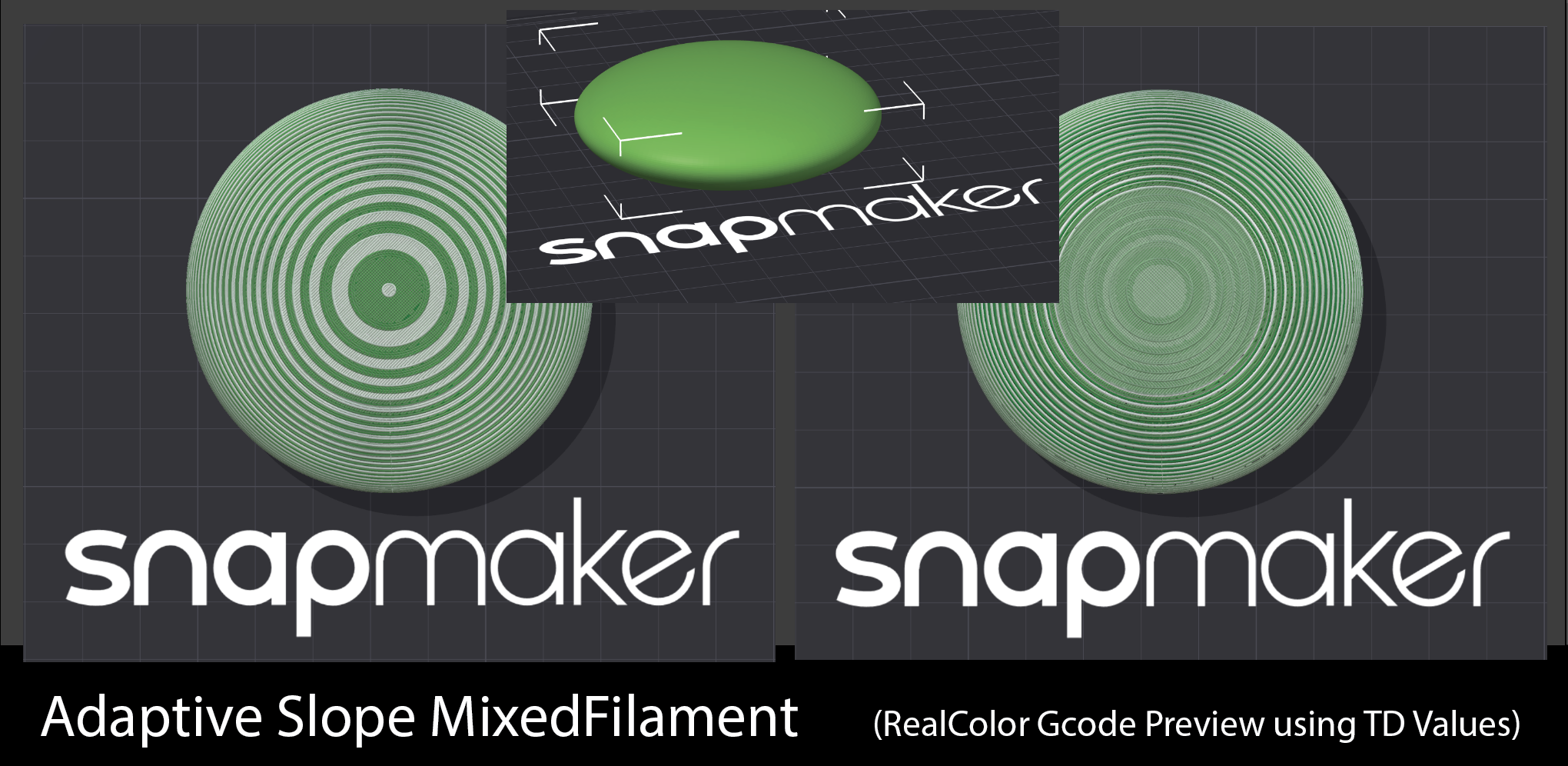
A problem no stock slicer addresses. On a sloped surface each layer's contour steps inward,
and that staircase ledge exposes the interior perimeter rings to view. Those
rings print in whatever the layer's colour happens to be, so a clean MixedFilament banding
degrades into noise exactly where the model curves. The wider the step
(d = layer height × tan(slope)), the more rings show: at 0.2 mm on a steep slope
you are already looking at one or two.
With Slope recolor on, the gizmo scans the mesh for slope bands, computes at your committed layer heights how many interior rings each band exposes, and stores a per-object recolor plan in the 3MF, undoable, erased when you untick. At slice time:
- the external perimeter is never touched, because its per-layer alternation is the pattern's visible rhythm and it keeps printing exactly as your recipe dictates;
- the exposed interior rings print a side-by-side combination of the recipe's own components, chosen by ΔE2000 colour distance so the ledge's blended appearance matches the recipe's intended mix. The step fills with the mix instead of a random solid.
The violet shading in the height editor shows which heights expose rings at each Z. Drag the curve below the violet edge and thin layers cover the slope instead. The two strategies are complementary: fine layers shrink the ledge until nothing extra shows (slow, maximum quality), slope recolor accepts tall layers and colours what shows (fast, good finish at 0.12–0.2 mm). Use the violet shading to choose per zone.
Limits, and it does need broad print testing: it is best on surfaces with one dominant slope, and two very different slopes sharing a height range currently share one plan with the steeper one winning. The plan is per height band rather than per region, so on a model sloped on one side and vertical on the other at the same Z, the vertical side's interior rings recolor too. Invisible there, but it costs toolchanges. And a Sandwich-on-a-slope zone still prioritises the thick-top Sandwich; the panel warns when you are in one.
The same idea, pointed anywhere else
Layer height is one setting. Height Adaptive Effects takes the same curve editor and points it at any other one: sparse infill width, wall widths, fuzzy skin and its whole character. The infill cell opens where nothing rests on it and closes under the top surface, fuzzy skin is born and dies with the height, and none of it is about colour. It has its own page because it is the piece of the fork with the widest reach.
The catch
- Libre Mode only.
- Every edit is a re-slice. Same as the stock brush, and on a big model that adds up while you are tuning.
- Min and max layer height are read-only, taken from the printer and nozzle. No per-object override yet.
- A dense existing profile does not import. Reopening the gizmo on an object painted with the old brush gives you a flat two-point start.
- Slope recolor costs toolchanges on regions where the recolor is invisible, because the plan is per height band rather than per region.
- Adapt to Color and Slope recolor are both WIP and want broad print testing.